Video Snapshot Wizard Main Interface Overview
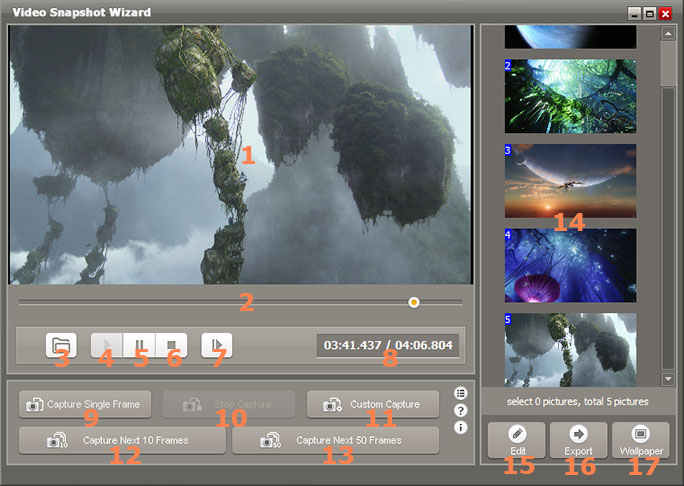
1. Video Player Window
Play your video file in this area.
2. Video Player Trackbar
Indicate the current playing position of video and help you control video playback.
3. Open Video Button
Click to open a video file, support the most popular video format such as AVI, FLV, ASF, MOV, RM, RMVB, WMV, MKV, VOB, MPG, MPEG etc.
4. Play
Click to play video.
5. Pause
Click to pause playing.
6. Stop
Click to stop playing.
7. Step Forward
Click to step forward frame by frame.
8. Timing Panel
Current Time / Total Time
9. Capture Single Frame
Click to capture one frame everytime.
10. Stop Capture
Click to stop continuous capture.
11. Custom Capture
User-define frame capture.
12. Capture Next 10 Frames
Click to capture following 10 continuous frames.
13. Capture Next 50 Frames
Click to capture following 50 continuous frames.
14. Thumbnails View Window
Show all grabbed frame images as thumbnails in this area, right click on frames to get more actions, for example you can edit, move, delete, import other external images.
15. Edit the captured frames
Edit the captured frames, support batch editing.
16. Export the captured frames
Export all or selected frames to hard disk.
17. Set Wallpaper
Set selected frame as wallpaper.